I/O Signal Blink

Use I/O Set to turn an external signal on and off.

Build a small hardware beacon where Doly turns an I/O signal on, waits, turns it off, and repeats the blink like a robot warning light.

Duration 10 min
Level Advanced
Progress Not Started
  1. Connect a safe low-power (max 25 mA) output module to I/O 0. With this example, we will use a 1 kΩ resistor and an LED. Confirm the pinout before connecting anything to Doly.
  2. Add a Repeat block under Start. Set Repeat to 3 times and Start to previous completed.
  3. Inside Repeat, add an I/O Set block. Set I/O to 0, State to HIGH, and Start to previous completed.
  4. Still inside Repeat, add a Delay block. Set Delay ms to 1000 and Start to previous completed.
  5. Inside Repeat, add another I/O Set block. Set I/O to 0, State to LOW, and Start to previous completed.
  6. Add one more Delay block inside Repeat. Set Delay ms to 1000 and Start to previous completed.
  7. Run the routine and watch the external signal blink three times.

Practice here anytime. Connect a Doly to run your code on the real robot.

Lesson Workspace

Drag and connect blocks to build your program.

Need help?

  • Use the same I/O number for the HIGH and LOW blocks so the same output turns on and off.
  • HIGH turns the output signal on. LOW turns it off.
  • Keep the final I/O Set state as LOW so the connected signal does not stay on after the blink routine.
  • Do not connect motors or high-power parts directly to an I/O pin. Use only safe low-power (max 25 mA) GPIO hardware.

Eye

Eye

Eye blocks control how Doly’s eyes look and move.

Eye Expression

Use this block to change Doly’s eye expression.

Eye Expression: Choose the mood group for Doly’s eyes. Type: Choose the exact animation inside that mood group. Start: Choose when this block begins. “previous completed” waits for the block before it to finish. “instant” starts right away. Modifier Blocks: On Complete

Eye Expression preview Preview coming soon
Eye Type

Use this block to change the appearance of Doly’s eye.

Eye Type: Choose the main eye type group. Style: Choose the style inside that eye type. Side: Choose which eye should change: Both, Left, or Right. Start: Choose when this block begins. “previous completed” waits for the block before it to finish. “instant” starts right away. Modifier Blocks: On Complete

Eye Type preview Preview coming soon

Eye Position

Use this block to move Doly’s eye position.

X: Set the horizontal eye position. The value can be 0 to 240. Y: Set the vertical eye position. The value can be 0 to 240. Position: X 120 and Y 120 is the center of the eye display. X 0 and Y 0 is the top-left corner. Side: Choose which eye should move: Both, Left, or Right. Start: Choose when this block begins. “previous completed” waits for the block before it to finish. “instant” starts right away. Modifier Blocks: On Complete

Eye Position preview Preview coming soon

Eye Background

Use this block to change Doly’s eye background.

Background Type: Choose the main background type. Style: Choose the style inside that background type. Side: Choose which eye background should change: Both, Left, or Right. Start: Choose when this block begins. “previous completed” waits for the block before it to finish. “instant” starts right away. Modifier Blocks: On Complete

Eye Background preview Preview coming soon
Sound

Sound

Sound blocks let Doly play sounds or speak words.

Sound

Use this block to play a sound.

Sound Type: Choose the sound category. Play: Choose the exact sound from that category. Start: Choose when this block begins. “previous completed” waits for the block before it to finish. “instant” starts right away. Modifier Blocks: On Complete

Sound preview Preview coming soon

Say

Use this block to make Doly speak.

Say: Write the words Doly should say. The text can be up to 255 characters. Start: Choose when this block begins. “previous completed” waits for the block before it to finish. “instant” starts right away. Modifier Blocks: On Complete

Say preview Preview coming soon

Drive

Drive

Drive blocks control how Doly moves, turns, and reaches positions.

Drive Distance

Use this block to move Doly by a set distance.

Drive: Set how far Doly should move. The distance is in millimeters (mm). 1 inch = 25.4 mm. Start: Choose when this block begins. “previous completed” waits for the block before it to finish. “instant” starts right away. Modifier Blocks: Drive Direction, Drive Speed, Speed & Acceleration & Brake, Speed & Force Control, On Complete

Drive Distance preview Preview coming soon

Drive To Position

Use this block to move Doly to an X and Y position in a coordinate system.

X: Set the target X position in millimeters (mm). From the 0,0 origin, positive X points to the right. The value can be -32765 to 32765. Y: Set the target Y position in millimeters (mm). From the 0,0 origin, positive Y points forward. The value can be -32765 to 32765. Origin: Doly’s starting position is 0,0 when Blockly starts. If Doly is picked up and placed back on the surface, the origin resets to 0,0. 1 inch = 25.4 mm. Start: Choose when this block begins. “previous completed” waits for the block before it to finish. “instant” starts right away. Modifier Blocks: Drive Direction, Drive Speed, On Complete

Drive To Position preview Preview coming soon

Rotate Left

Use this block to turn Doly left.

Rotate Left: Set how many degrees Doly should turn left. The angle can be 0 to 359 degrees. from center: Choose how Doly turns. Checked means Doly turns around its center by moving both tracks in opposite directions. Unchecked means one track stays stopped while the other track moves. Start: Choose when this block begins. “previous completed” waits for the block before it to finish. “instant” starts right away. Modifier Blocks: Drive Direction, Drive Speed, Speed & Acceleration & Brake, Speed & Force Control, On Complete

Rotate Left preview Preview coming soon

Rotate Right

Use this block to turn Doly right.

Rotate Right: Set how many degrees Doly should turn right. The angle can be 0 to 359 degrees. from center: Choose how Doly turns. Checked means Doly turns around its center by moving both tracks in opposite directions. Unchecked means one track stays stopped while the other track moves. Start: Choose when this block begins. “previous completed” waits for the block before it to finish. “instant” starts right away. Modifier Blocks: Drive Direction, Drive Speed, Speed & Acceleration & Brake, Speed & Force Control, On Complete

Rotate Right preview Preview coming soon
Direction

Use this modifier block to choose Doly’s drive direction.

Direction: Choose Forward or Reverse. Compatible Blocks: Drive Distance, Drive To Position, Rotate Left, Rotate Right, Drive Speed, Speed & Acceleration & Brake Modifier Blocks: Drive Speed, On Complete

Direction preview Preview coming soon
Speed

Use this modifier block to set Doly’s drive speed.

Speed: Set how fast Doly drives. The speed can be 1 to 100. Compatible Blocks: Drive Distance, Drive To Position, Rotate Left, Rotate Right, Drive Direction Modifier Blocks: Drive Direction, On Complete

Speed preview Preview coming soon

Speed & Acceleration & Brake

Use this modifier block to control Doly’s drive speed, acceleration, and brake setting.

Speed: Set how fast Doly drives. The speed can be 1 to 100. Acceleration: Set how quickly Doly changes speed. The value can be 0 to 50. Brake: Choose whether Doly should brake when the movement is close to the end. Compatible Blocks: Drive Distance, Rotate Left, Rotate Right, Speed & Force Control Modifier Blocks: Drive Direction, On Complete

Speed & Acceleration & Brake preview Preview coming soon

Speed & Force Control

Use this modifier block to control drive correction and motor protection.

Speed Control: Helps Doly keep its movement correct by adjusting the motor speed on each track side. This is useful when one side has more traction or resistance than the other. Force Control: Helps protect the motors if Doly is blocked or stuck. When enabled, Doly checks motor feedback and stops the motors if it cannot move safely. Compatible Blocks: Drive Distance, Rotate Left, Rotate Right Modifier Blocks: Speed & Acceleration & Brake, On Complete

Speed & Force Control preview Preview coming soon

Arm

Arm

Arm blocks control Doly’s arm positions.

Arm Angle

Use this block to move Doly’s arm to a set angle.

Arm Angle: Set the arm position angle. The angle can be 0 to 225 degrees. Side: Choose which arm should move: Both, Left, or Right. Start: Choose when this block begins. “previous completed” waits for the block before it to finish. “instant” starts right away. Modifier Blocks: Arm Speed & Brake, On Complete

Arm Angle preview Preview coming soon

Speed & Brake

Use this modifier block to control Doly’s arm speed and hold setting.

Speed: Set how fast the arm moves. The speed can be 1 to 100. Brake: Choose whether Doly should hold the arm at its final position. “Yes” keeps the arm locked in place. “No” lets it release after moving. Compatible Blocks: Arm Angle Modifier Blocks: On Complete

Speed & Brake preview Preview coming soon

Lights

Lights

Light blocks control Doly’s arm light colors.

Light

Use this block to set Doly’s arm light color.

Light Color: Choose the light color. Side: Choose which light should change: Both, Left, or Right. Start: Choose when this block begins. “previous completed” waits for the block before it to finish. “instant” starts right away. Modifier Blocks: On Complete

Light preview Preview coming soon

Light Animation

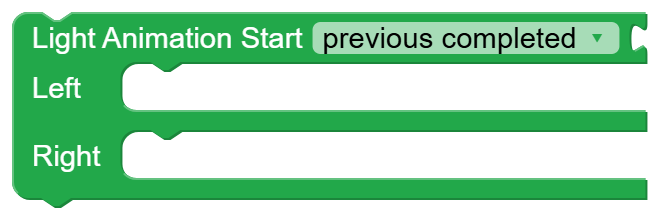
Use this block to create a light animation for Doly’s lights.

Start: Choose when this block begins. “previous completed” waits for the block before it to finish. “instant” starts right away. Left: Add Animation Color blocks for the left light. Right: Add Animation Color blocks for the right light. Nested Blocks: Animation Color Modifier Blocks: On Complete

Light Animation preview Preview coming soon

Animation Color

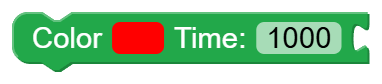
Use this nested block to add a color step to a light animation.

Color: Choose the light color for this step. Time: Set how long this color step lasts. The time is in milliseconds (ms). The value can be 10 to 10000. If a Light Fade modifier is connected, this time also controls how long the color change takes. Compatible Blocks: Light Animation Modifier Blocks: Light Fade

Animation Color preview Preview coming soon

Fade Color

Use this modifier block to fade a light color for light animation color blocks.

Fade Color: Choose the color this light step should fade to. Compatible Blocks: Animation Color

Fade Color preview Preview coming soon

Time

Time

Time blocks add pauses between actions.

Delay

Use this block to pause the routine.

Delay ms: Set how long Doly should wait before continuing. The time is in milliseconds (ms). The value can be 5 to 60000. 1000 ms = 1 second. Start: Choose when this block begins. “previous completed” waits for the block before it to finish. “instant” starts right away. Modifier Blocks: On Complete

Delay preview Preview coming soon

Loops

Loops

Loop blocks repeat a group of actions.

Repeat

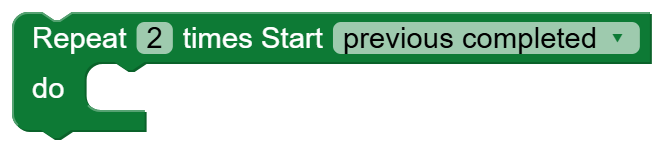
Use this block to repeat actions.

Repeat: Set how many times the actions should run. The value can be 1 to 65535. Start: Choose when this block begins. “previous completed” waits for the block before it to finish. “instant” starts right away. do: Place the action blocks you want to repeat here.

Repeat preview Preview coming soon

Servo

Servo

Servo blocks control external servos connected to Doly.

Servo Angle

Use this block to move an external servo connected to Doly via GPIO port.

Servo: Choose which servo port to control: pwm_0 or pwm_1. Angle: Set the target servo angle. The angle can be 0 to 240 degrees. Start: Choose when this block begins. “previous completed” waits for the block before it to finish. “instant” starts right away. Modifier Blocks: Servo SI, On Complete

Servo Angle preview Preview coming soon

Speed & Invert

Use this modifier block to control servo speed and direction.

Speed: Set how fast the servo moves. The speed can be 1 to 100. Invert: Choose whether the servo direction should be reversed. Compatible Blocks: Servo Modifier Blocks: On Complete

Speed & Invert preview Preview coming soon

Gpio

Gpio

GPIO blocks control and read Doly’s external I/O pins.

I/O Set

Use this block to set a GPIO pin to LOW or HIGH.

I/O #: Choose the GPIO pin number. The value can be 0 to 5. State: Choose the pin state: LOW or HIGH. Start: Choose when this block begins. “previous completed” waits for the block before it to finish. “instant” starts right away. Modifier Blocks: On Complete

I/O Set preview Preview coming soon

I/O Wait

Use this block to wait until a GPIO pin becomes LOW or HIGH. To avoid unexpected behavior or deadlock, it will wait up to 65 seconds. If the pin state does not change within that time, the program will be terminated.

I/O #: Choose the GPIO pin number. The value can be 0 to 5. State: Choose the pin state Doly should wait for: LOW or HIGH. Start: Choose when this block begins. “previous completed” waits for the block before it to finish. “instant” starts right away. Modifier Blocks: On Complete

I/O Wait preview Preview coming soon

I/O Condition

Use this nested block to check a GPIO pin state.

I/O #: Choose the GPIO pin number. The value can be 0 to 5. Comparator: Choose how to compare the pin state: = or ≠. State: Choose the pin state to check: LOW or HIGH. Compatible Blocks: If

I/O Condition preview Preview coming soon

Logic

Logic

Logic blocks let Doly choose actions based on a condition.

If

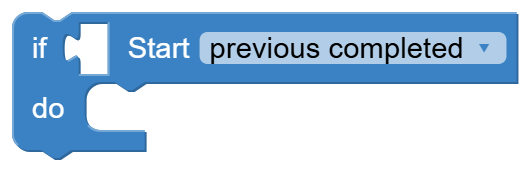
Use this block to run actions only when a condition is true.

If: Add a nested block that checks the condition. Start: Choose when this block begins. “previous completed” waits for the block before it to finish. “instant” starts right away. do: Place the action blocks that should run when the condition is true. Nested Blocks: GPIO If

If preview Preview coming soon

Events

Events

Event blocks are triggered after an event happens.

On Complete (Beta)

Use this modifier block to run actions after another block finishes.

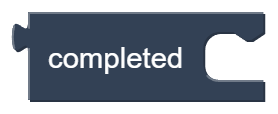
Completed: Place the action blocks that should run after the connected block finishes. Compatible Blocks: Blocks that accept On Complete.

Example: Use On Complete when one action should happen after a block finishes, but another action should still start right away. For example, Doly can start driving and turn on a light instantly, while an On Complete block makes Doly play a sound only after the drive movement finishes.
On Complete (Beta) preview Preview coming soon